
Client framework components (yuv)
A quick orientation to the components you’ll encounter most often, with semantic roles and key design facts:
Layout
Section titled “Layout”Master Details
Section titled “Master Details”Layout component that displays a master view and a details view side by side. Supports responsive behavior and popout functionality for flexible usage across screen sizes.
- Two-Panel Layout
- Displays main content and details simultaneously.
- Responsive Design
- Adapts layout automatically to different screen sizes.
- Resizable Panels
- Allows users to adjust panel sizes as needed.
- Popout Support
- Details view can open in a separate window.
- Split View
- Two side-by-side panels separated by a resize gutter.
- Responsive Behavior
- Shows details as a modal on smaller screens.
- Grid Layout
- Uses CSS Grid for structured and flexible layouts.
- Overflow Handling
- Scrollbars appear automatically when content exceeds panel size.
- Popout Integration
- Supports independent display of the details panel.
- Panel Toggle
- Details panel can be shown or hidden.
- Resize
- Panels can be resized via draggable gutter.
- Popout Mode
- Opens details in a separate browser window.
- Responsive Switch
- Automatically adapts layout to screen size.
- Layout Persistence
- Remembers user layout preferences for future sessions.
- Panel Proportions
- Define initial size ratios between master and details views.
- Minimum Widths
- Set lower size limits to maintain readability and layout balance.
- Resizing
- Allow or restrict manual resizing depending on the use case.
- Popout Behavior
- Decide whether the details view can open in a separate window.
- Layout Memory
- Optionally preserve user layout settings between sessions.
Split View
Section titled “Split View”Layout component that displays multiple resizable areas side by side. Supports layout persistence, responsive behavior, and adjustable gutter styles.
- Resizable Layout
- Allows users to resize panels by dragging dividers.
- Flexible Areas
- Supports multiple sections with individual configurations.
- Layout Persistence
- Saves and restores user-defined panel sizes automatically.
- Responsive Design
- Adapts to varying screen sizes and orientations.
- Visual Variants
- Provides different gutter styles for distinct visual density levels.
- Split Layout
- Multiple panels aligned horizontally or vertically.
- Gutters
- Visible handles for resizing between panels.
- Shade Mode
- Minimal style with 1px gutter width for compact layouts.
- Hover Feedback
- Visual response when hovering over interactive handles.
- Smooth Transitions
- Animated resizing for a seamless interaction experience.
- Drag to Resize
- Users can drag gutter handles to adjust panel widths or heights.
- Click Actions
- Single or double-click behavior can trigger additional layout actions.
- Persistence
- Saves layout changes automatically and restores them on reload.
- Feedback
- Displays visual cues during resizing operations.
- Events
- Notifies the system when layout or panel sizes change.
- Orientation
- Choose horizontal or vertical split depending on the content type.
- Sizing
- Define default, minimum, and maximum panel sizes for a balanced layout.
- Resize Constraints
- Limit if dividers can move
- Disabled State
- Temporarily disable resizing in read-only or guided workflows.
- Gutter Styling
- Select between standard or shade mode; adjust drag handle size and contrast as needed.
- Persistence
- Retain layout preferences locally to ensure a consistent experience across sessions.
Object-centric Views
Section titled “Object-centric Views”Object Details
Section titled “Object Details”Main component for displaying complete DMS object details. Combines content preview, metadata, and audit history within a unified tab-based interface.
- Central Object View
- Provides a unified detail interface for all object information.
- Tab Navigation
- Organizes content into separate tabs for content, metadata, and history.
- Inner Wrapper
- Built on top of the Object Details Shell component for structure.
- Tab Layout
- Uses Material Design tab group for navigation and content organization.
- Content Tab
- Displays object preview when content is available.
- Metadata Tab
- Shows editable metadata fields, including sections.
- History Tab
- Displays chronological audit history entries.
- Tab Switching
- Allows navigation between content, metadata, and history sections.
- Tab Guard
- Prevents accidental navigation with unsaved changes.
- Layout Options
- Define header visibility according to context.
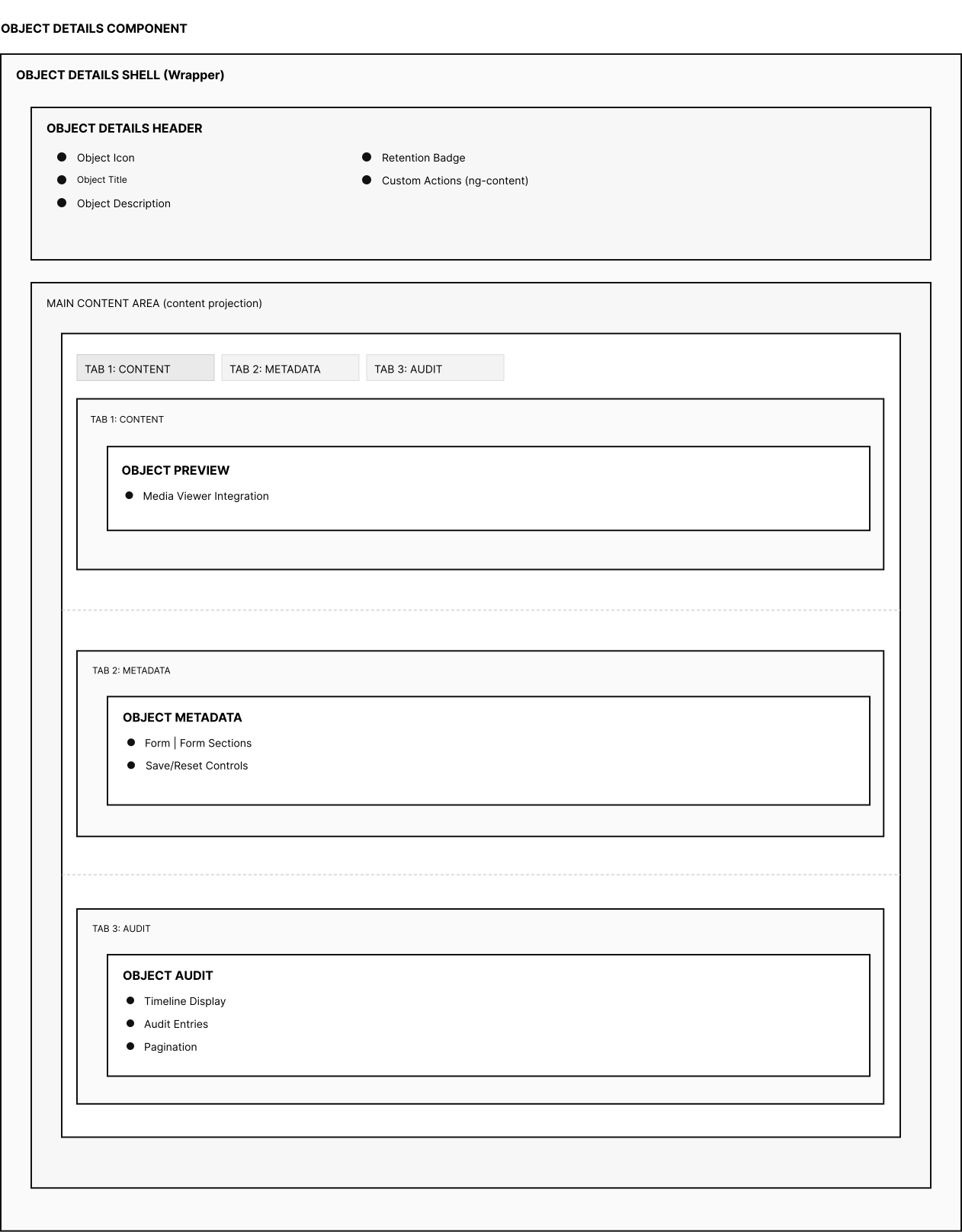
Object Details Shell
Section titled “Object Details Shell”Wrapper container for DMS object detail views. Provides a consistent structure with optional header and manages loading.
- Wrapper Structure
- Provides a general layout for all object detail views.
- Header Management
- Shows an optional header based on object configuration.
- Content Projection
- Offers a main content area that can be populated externally.
- Object Loading
- Loads objects by ID and exposes a presentation shell.
- Error Handling
- Centralizes error display.
- Flex Layout
- Vertical layout separating header and content areas.
- Content Area
- Flexible region with busy overlay for loading states.
- Empty & Error States
- Centered, readable states.
- Object Updates
- Refreshes content when the object changes.
- Object Deletion
- Cleans up and resets when the object is removed.
- Busy States
- Indicates loading with an overlay.
- Error Handling
- Shows messages.
- Header Visibility
- Decide whether a header is needed for the context.
Object Details Header
Section titled “Object Details Header”Displays key object information such as title, description, icon, and badges. Generated dynamically based on the object configuration and supports contextual actions.
- Object Header
- Highlights essential object information including title, description, and status.
- Action Slots
- Supports projected actions that can extend header functionality.
- Retention Badges
- Displays retention status and other related indicators.
- Title Area
- Shows the main object title with text truncation for overflow.
- Icon Area
- Displays the object type icon.
- Description Area
- Optional description placed below the title for context.
- Badge Area
- Hosts retention and other status badges for quick recognition.
- Action Area
- Provides space for contextual actions projected into the header.
- Event Listening
- Updates automatically when the object or its configuration changes.
- Text Overflow
- Handles long text gracefully using truncation and tooltips where needed.
- Object Context
- Bind to a DMS object and its associated configuration.
- Action Integration
- Inject contextual actions via projected templates.
Object Preview
Section titled “Object Preview”Universal preview component for displaying DMS objects of different file types. Integrates the Media Viewer for rendering documents and images.
- Universal Preview
- Provides a consistent viewing experience for all supported file formats.
- Media Viewer Integration
- Connects with the Media Viewer for content rendering.
- Viewer Area
- Main region displaying documents, images, or media content.
Object Metadata
Section titled “Object Metadata”Form system for editing DMS object metadata. Supports both basic metadata and object-type-specific elements in a unified interface.
- Metadata Display
- Provides a complete view of all metadata associated with an object.
- Metadata Editing
- Enables editing of metadata fields.
- Section Layout
- Organized in expandable sections for clarity and hierarchy.
- Accordion Design
- Uses collapsible panels to separate metadata groups.
- Floating Contextual Controls
- Features floating toolbar for save and reset actions.
- Form Validation
- Performs live validation and combined state checks across forms.
- Save & Reset Controls
- Shows controls dynamically based on form state.
- Pending Changes Handling
- Manages unsaved data and prevents accidental loss.
- Error Handling
- Displays clear error messages and recovery feedback.
Object Audit
Section titled “Object Audit”Displays a chronological timeline of changes to a DMS object. Presents audit entries in order and supports efficient navigation for large histories.
- Change History
- Shows all modifications to an object in chronological order.
- Timeline Visualization
- Uses a visual timeline to support quick scanning.
- Transparency
- Improves traceability of actions and responsible users.
- Readability
- Uses localized labels and clear grouping by time.
- Timeline Layout
- Vertical line with markers and structured cards per entry.
- Audit Cards
- Card content includes date, action, user, and optional details.
- States
- Includes loading, error, and empty states with clear messaging.
- Automatic Updates
- Refreshes when the underlying object changes.
- Pagination
- Navigate between pages using previous/next controls.
- Filtering
- Optionally hide selected action types to reduce noise.
- Event Listening
- Reacts to object update events to keep the list current.
- Loading & Errors
- Shows a busy overlay while loading and clear error feedback when needed.
- Scope
- Decide which objects expose audit history and at which detail level.
- Filters
- Define which actions are shown or hidden to match the user’s task.
- Pagination Strategy
- Choose page size and navigation model for large histories.
- Roles & Visibility
- Adjust the level of detail based on user roles or permissions.
Object Summary
Section titled “Object Summary”Displays a compact overview of DMS objects, combining visual identification, metadata, and contextual actions in a unified layout. Supports both single and multi-object contexts with dynamic object type handling.
- Compact Overview
- Presents essential object information at a glance for quick understanding.
- Object Type Awareness
- Adapts dynamically to active object types and their extended metadata.
- Metadata Context
- Displays base and object-type-specific fields.
- Actions
- Offers contextual object actions through an overflow menu.
- Viewer Area
- Main display area for thumbnails, slides, or icons.
- Object Type Bar
- Horizontal area for switching between object types.
- Content Area
- Scrollable area with object title, description, and metadata.
- Badges
- Displays retention or folder indicators for additional context.
- Viewer Area Loading
- Loads object slides or fallback icons.
- Object Type Selection
- Allows switching between available object types showing related meta data.
- Actions
- Provides contextual actions tailored to the selected object.
- Folder Information
- Displays aggregated size and content data for folder objects.
Object Summary Data
Section titled “Object Summary Data”Displays structured metadata for DMS objects in a compact format. Supports base fields and object-specific extensions.
- Metadata Display
- Presents object metadata as clear label–value pairs.
- Base Data
- Highlights core fields such as dates, author, name, size, and MIME type.
- Object Type Data
- Surfaces object-type-specific fields when applicable.
- Sections
- Separates base metadata from object-type-specific groups.
- Table Pattern
- Label–value rows with consistent spacing and alignment.
- Responsive Rows
- Stacks vertically on small containers, aligns horizontally on larger ones.
Reusable list item for displaying DMS objects in a compact, structured layout. Combines icon, title, description, metadata, actions, badges, and optional extensions.
- Object Representation
- Provides a uniform way to present DMS objects in lists.
- Structured Information
- Surfaces icon, title, description, and key metadata clearly.
- Action Integration
- Exposes contextual actions within the list item.
- Extension Support
- Allows additional content areas for specific object types.
- Responsive
- Adapts to varying container sizes and densities.
- Grid Layout
- Uses a CSS Grid structure to position icon, content, aside, actions, and badges.
- Slot Pattern
- Named content areas (e.g., icon, title, description, meta, aside, actions, badges, extension).
- Icon Area
- Left-aligned icon with fixed width for stable alignment.
- Content Areas
- Central region for title, description, and metadata with sensible truncation.
- Action Area
- Right-aligned icon buttons that remain visually quiet until needed.
- Badges
- Compact status indicators aligned with overall hierarchy.
- Actions
- Clicking an action button triggers the corresponding contextual operation.
- Selection & Focus & Hover
- Selected, keyboard focus, hover states.
- Tooltips
- Action buttons provide concise labels on hover.
- Extensions
- Optional expandable content for richer object types when required.
- Content Mapping
- Decide which fields map to title, description, meta, aside, and badges.
- Action Set
- Include only the most relevant actions; avoid overcrowding.
Tile List
Section titled “Tile List”Displays tiles in a scrollable list. Supports multi-selection, pagination, keyboard navigation, and context-aware actions.
- Object Lists
- Presents DMS objects as tiles.
- Multi-Selection
- Supports single and multi-select workflows.
- Scalability
- Handles large result sets with pagination and performant rendering.
- Vertical Flow
- Stacked tiles in a vertical list.
- Scrollable Container
- Overflow-y enabled for long lists with smooth scrolling.
- Pagination Controls
- Navigation placed at the bottom; only appears when needed.
- Empty State
- Centered, minimal illustration and guidance when no results are found.
- Selection
- Single-click selects; supports multi-select via modifier keys.
- Double-Click
- Triggers the primary action for the focused tile.
- Drag Select
- Enables range selection using pointer drag, including touch contexts.
- Context Menu
- Right-click opens actions scoped to the current selection.
- Selection Model
- Choose single vs. multi-select based on the task; keep selection visible and clear.
- Action Model
- Expose only highly relevant actions.
- Tile Mapping
- Decide which object fields map to title, description, meta, badges, and highlights.
Search
Section titled “Search”Simple Search
Section titled “Simple Search”Lightweight search field for entering queries in DMS contexts. Supports live search with debouncing, basic aggregation, and accessible form behavior.
- Search Entry
- Provides a straightforward input for searching DMS objects.
- Live Search
- Performs incremental search with debounced input.
- Accessibility
- Supports screen readers and full keyboard flow.
- Form Field
- Outlined field with a search icon prefix for recognition.
- Clear Action
- Suffix clear button to quickly reset the query.
- Hidden Submit
- Invisible submit control to support assistive tech.
- Iconography
- Search and close icons reinforce affordances.
- Debounced Input
- Runs live search after a short delay to avoid noise.
- Submit
- Enter triggers an explicit search when needed.
- Clear
- Clicking the clear control resets the field and results.
Overlays & Actions
Section titled “Overlays & Actions”Dialog
Section titled “Dialog”Provides a structured modal layout with header, content, and footer areas.
- Structured Layout
- Defines clear header, content, and footer sections.
- Flexible Content
- Supports any projected content through slots.
- Consistency
- Ensures a unified dialog appearance throughout the application.
- Header
- Optional title area.
- Content Area
- Scrollable region with overflow handling.
- Footer
- Right-aligned buttons with optional separator.
- Focus Trap
- Automatic focus management handled by Angular Material Dialog.
- Keyboard Navigation
- ESC closes the dialog; Tab cycles between interactive elements.
- Click-Outside
- Can close when clicking outside the dialog container.
- Dialog Close
- Buttons can close the dialog via
mat-dialog-close.
- Layout
- Define header, content, and footer areas using clear visual hierarchy.
- Customization
- Enable or disable separators; adjust spacing and background via design tokens.
- Integration
- Supports Material Dialog features such as size, position, and close handling.
Confirm
Section titled “Confirm”Modal dialog for confirmation prompts. Used for critical actions that require explicit user confirmation.
- Safety Check
- Prevents accidental execution of critical or irreversible actions.
- Consistency
- Provides uniform confirmation dialogs across the application.
- Clarity
- Presents messages that clearly communicate consequences.
- Flexibility
- Adapts text and actions to different confirmation contexts.
- Dialog
- Modal overlay with focus trap and backdrop for user attention.
- Layout
- Structured into optional header, message area, and action buttons.
- Two-Button Mode
- Default layout with Cancel and Confirm actions.
- Single-Button Mode
- Used for irreversible actions without cancel option.
- Keyboard Support
- ESC closes, Enter confirms, Tab navigates between buttons.
- Click-Outside
- Can close when clicking outside the dialog area.
- Content
- Keep messages short, action-oriented, and specific to the task.
- Buttons
- Provide clear labels that describe the outcome/task (e.g., “Delete”, “Keep”).
- Layout
- Use concise headers and avoid unnecessary visual elements.
Clipboard
Section titled “Clipboard”Displays the current clipboard state and provides actions for inserting or clearing items. Indicates whether elements are copied or cut and offers related controls.
- Clipboard State
- Shows which items are currently stored in the clipboard.
- Action Control
- Provides options to paste or clear clipboard contents.
- User Guidance
- Clearly communicates the current clipboard mode and status.
- Integration
- Designed to fit seamlessly into ribbons, toolbars, or similar interfaces.
- Container
- Elevated surface with rounded corners and compact layout.
- Status Label
- Dynamic text reflecting clipboard mode and item count.
- Buttons
- Primary paste action and secondary clear option for quick access.
- Layout
- Horizontal alignment that adapts to available width.
- Responsiveness
- Adjusts size and spacing to fit within toolbars or panels.
- Automatic Visibility
- Appears only when clipboard content exists.
- Paste Action
- Available when pasting is enabled in the current context.
- Clear Action
- Immediately removes clipboard content when triggered.
- Feedback
- Updates dynamically to reflect current state and user actions.
- Behavior
- Display automatically when items are copied or cut.
- Actions
- Allow quick paste or clear operations depending on user permissions.
- Integration
- Connects with the system clipboard logic for centralized handling.
Context Menu
Section titled “Context Menu”Displays available secondary/tertiary actions for a selected element.
Triggered by right-click/keyboard shortcut or left-click on “three-dots-icon-button”.
- Contextual Actions
- Surfaces relevant actions based on the current selection or state.
- Efficient Access
- Provides quick access to frequently used functions without navigation.
- Consistency
- Ensures unified behavior and structure for context-related actions.
- Integration
- Fits seamlessly into lists, tables, and other interactive views.
- Container
- White background with subtle border and rounded corners.
- Menu Items
- Icon and text aligned horizontally with consistent padding.
- Hover and Focus
- Subtle background feedback for pointer and keyboard interaction.
- Disabled Items
- Reduced opacity for unavailable options.
- Dimensions
- Compact layout with limited width for fast scanning.
- Trigger
- Opens on right-click or designated keyboard shortcut.
- Navigation
- Arrow keys move between available actions.
- Action
- Enter or Space executes the focused item.
- Close
- Escape dismisses the menu without action.
- Tooltips
- Provide optional contextual descriptions on hover.
Retention Badge
Section titled “Retention Badge”Displays the retention status of DMS objects. Shows a lock icon and time period for documents under retention.
- Status Indicator
- Visually represents the retention state of a document.
- Time Period
- Displays the start and end dates of the retention phase.
- Attention
- Highlights objects that are protected or locked.
- Consistency
- Ensures a unified display of retention status across the application.
- Badge
- Compact rounded container with icon and text.
- Icon
- Uses Material symbol
lock_clockfor clear recognition. - Text
- Shows localized start and end dates with ellipsis truncation if needed.
- Layout
- Responsive layout adapting to available space.
- Automatic Display
- Appears automatically for objects under active retention.
- Data Source
- Relies on the object’s metadata to determine and display retention status.
- Integration
- Commonly used in object summaries, details, and drive object views.
Forms & Selection
Section titled “Forms & Selection”Autocomplete
Section titled “Autocomplete”Provides text input with dynamic suggestions. Supports single and multiple selection as well as optional free text entry.
- Smart Assistance
- Suggests relevant options based on user input.
- Flexible Selection
- Supports both single and multi-select modes for different use cases.
- Ease of Use
- Allows adding new values that are not part of the predefined list.
- Form Integration
- Designed to work seamlessly within form structures and validations.
- Input Field
- Material input with transparent background and subtle focus styling.
- Chips
- Rounded containers representing selected items in multi-select mode.
- Dropdown
- Option list displayed beneath the input, following Material Design patterns.
- Loading Indicator
- Displays a spinner during asynchronous data loading.
- Layout
- Supports horizontal scrolling when multiple chips are selected.
- Suggestions
- Shown after a minimum number of typed characters (default: 2).
- Selection
- Choose options via click or Enter key.
- Chip Removal
- Remove items using the X button or Backspace key.
- Keyboard Navigation
- Navigate dropdown options with arrow keys.
- Blur Behavior
- Optionally add entered text when the field loses focus.
- Selection Mode
- Choose between single or multiple selection based on input context.
- Suggestion Threshold
- Define how many characters are required before showing suggestions.
- Customization
- Support for adjustable chip and option templates for visual alignment.
- Integration
- Fits naturally within Material form fields and reactive form setups.
Catalog
Section titled “Catalog”Select component that provides predefined options from a catalog. Supports single and multiple selection.
- Structured Selection
- Provides predefined options for consistent data input.
- Flexible Sources
- Works with static lists or dynamically maintained catalogs.
- Form Integration
- Fits seamlessly into forms with clear validation and feedback.
- Select
- Classic menu with clearly separated options.
- States
- Includes default, hover, focus, error, and disabled.
- Responsive
- Adapts naturally to container width and device size.
- Single Selection
- Allows users to choose one option from a list.
- Multiple Selection
- Can support multiple selected values when needed.
- Read-only
- Disables interaction in non-editable or review contexts.
- Validation
- Indicates required and invalid states through visual feedback.
- Option Source
- Provide options either as a static list or dynamically from a system catalog.
- Selection Mode
- Support single or multiple selection depending on context.
- Required Control
- Enable validation as needed.
- Integration
- Works both as a standalone field or within form fields.
UploadProgress
Section titled “UploadProgress”A component that displays real-time progress and status of file uploads. It combines a compact floating panel with an expandable overlay to manage active, completed, and failed uploads efficiently.
- Upload Progress Display
- Visualizes upload activity, including active, completed, and failed files.
- User Feedback
- Keeps users informed without disrupting ongoing tasks through a non-blocking UI.
- Error Awareness
- Communicates upload errors clearly with descriptive messages and status icons.
- Result Interaction
- Allows users to interact with successfully uploaded items directly.
- Floating Panel
- Fixed overlay positioned in the bottom-right corner of the viewport.
- Expandable Header
- Displays summarized status with expand/collapse for detailed view.
- Progress Indicators
- Animated bars and percentage labels represent ongoing upload progress.
- Status Icons
- Distinct icons for uploading, completed, and failed states.
- Expand / Collapse
- Users can toggle the upload list visibility using a header control.
- Cancel Upload
- Individual or all uploads can be cancelled during progress.
- Remove Items
- Completed or failed uploads can be dismissed from the list.
- Result Clicks
- Successful uploads are clickable for quick navigation or preview.
- Auto Hide
- Panel disappears automatically when no uploads are active.