Action Hierarchy
The Action Hierarchy defines how actions are structured, scoped, and visually placed across the yuuvis® application shell. It establishes a shared logic for visibility and contextual relevance — ensuring users always understand what level an action affects.
This concept is purely design-level and not yet implemented technically. It forms the conceptual foundation for how actions can be designed, positioned, and perceived throughout the application.
Action Levels
Section titled “Action Levels”Actions are grouped into four hierarchical levels that describe their scope, visibility, and context within the system.
- Global Actions
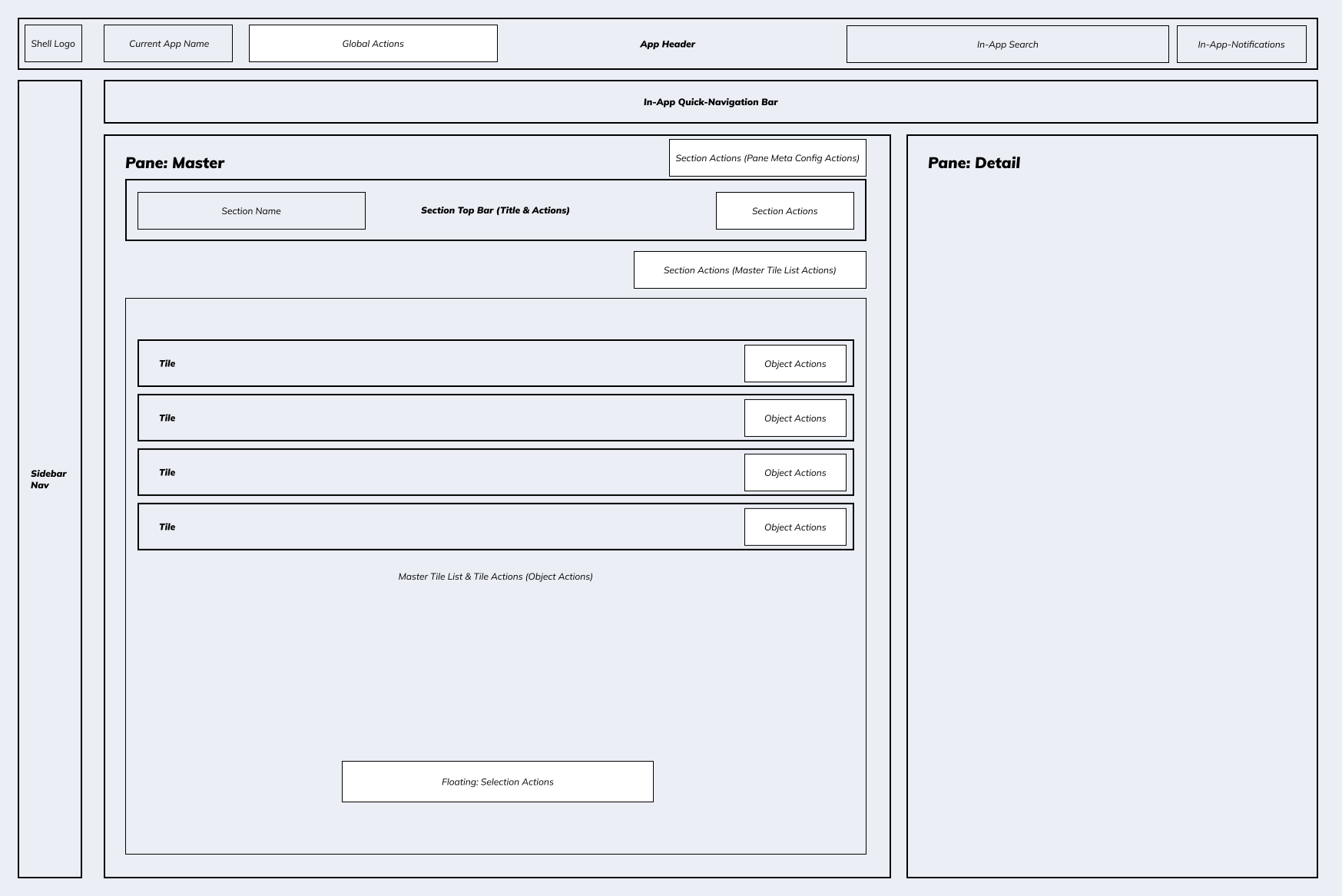
- App-wide scope. Always visible and active. Reflect overall system state (e.g., app-wide object creation, Clipboard, Undo/Redo). Positioned persistently at the top of the application.
- Section Actions
- Pane or section-level scope. Always visible within the respective section. Positioned at the top of the section or pane header.
- Selection Actions
- Refer to a selected range of multiple objects. Temporarily visible and active after selection. Positioned close to the context area (e.g., secondary toolbar).
- Object Actions
- Apply to a single object. Temporarily visible after item selection or hover. Positioned near the object (e.g., inline action, context menu).
Design Purpose
Section titled “Design Purpose”- Cognitive Clarity
- Users can easily understand which part of the system an action affects — global, section, or object level.
- Visual Consistency
- Action placement and appearance follow predictable rules across all app areas.
- Scalable Structure
- The hierarchy scales from simple to complex applications and can be extended with new action types that integrate as specialized subtypes (e.g. notification actions, workflow actions) within the existing levels rather than introducing new hierarchy tiers.
- Design-to-Implementation Alignment
- Provides a conceptual model that can later map directly to framework components (e.g., Context Menus, Action Bars).
Visual Design
Section titled “Visual Design”- Global Actions
- Persistent, top-level placement within the app shell. High visual prominence.
- Section Actions
- Toolbar-like presentation within a workspace, pane or section header. Moderate prominence.
- Selection Actions
- Displayed dynamically when multiple objects are selected. Typically grouped as secondary toolbar or floating panel.
- Object Actions
- Compact icons or buttons shown near or inside object cards, tables, or lists. Context-sensitive and directly bound to one item.
Interaction
Section titled “Interaction”- Visibility
- Higher-level actions (Global, Section) are persistent. Lower-level actions (Selection, Object) appear contextually after selection.
- Keyboard Shortcuts
- Supported across all levels. Global shortcuts apply app-wide, while contextual shortcuts use modifier keys.
- State Reflection
- Actions visually reflect current scope or state (active, disabled, pending).
- Role Awareness
- Certain actions can be role-based or permission-limited depending on user context.
Configuration
Section titled “Configuration”- Scope Definition
- Clearly define which part of the system each action affects.
- Placement Rules
- Use consistent vertical zones: app top bar for global, section top bars for section, contextual overlays for selection/object actions.
- Context Binding
- Only contextual actions (Selection or Object) respond dynamically to the current state or selection. Global and Section actions remain persistently available and stable in behavior.
Spatial Placement
Section titled “Spatial Placement”The following wireframe illustrates the typical spatial distribution of the four action levels within a shell layout. It is not a final layout, but a conceptual visualization showing where actions of each hierarchy level are positioned in relation to the workspace, panes and objects.